
Social media post design decides whether someone stops on your post or keeps scrolling. Open Instagram, LinkedIn or Facebook right now and scroll for ten seconds. Most of what you see is a single image with a few words on it. Carousels and Reels get plenty of attention, but the humble single image post is still the workhorse of social media.
It’s also the easiest format to get wrong. One image gives you one shot. If the design is cluttered or the first line is dull, people keep scrolling and you never know they were there.
This complete guide covers everything I’d want to know if I were starting out: what a single image post is, the main types, the right dimensions, how to find and write a hook, how to design one in Canva, and which free tools are worth your time. I’ve included Canva examples throughout so you can see each idea in action.
What Is a Single Image Post?
A single image post is a social media post built around one static visual, usually paired with a caption. That visual could be a photo, an illustration, a graphic with text, a quote card, or a mix of these.
That’s the whole definition. There’s no swiping, no video and no audio. The image has to do all the work in about two seconds.

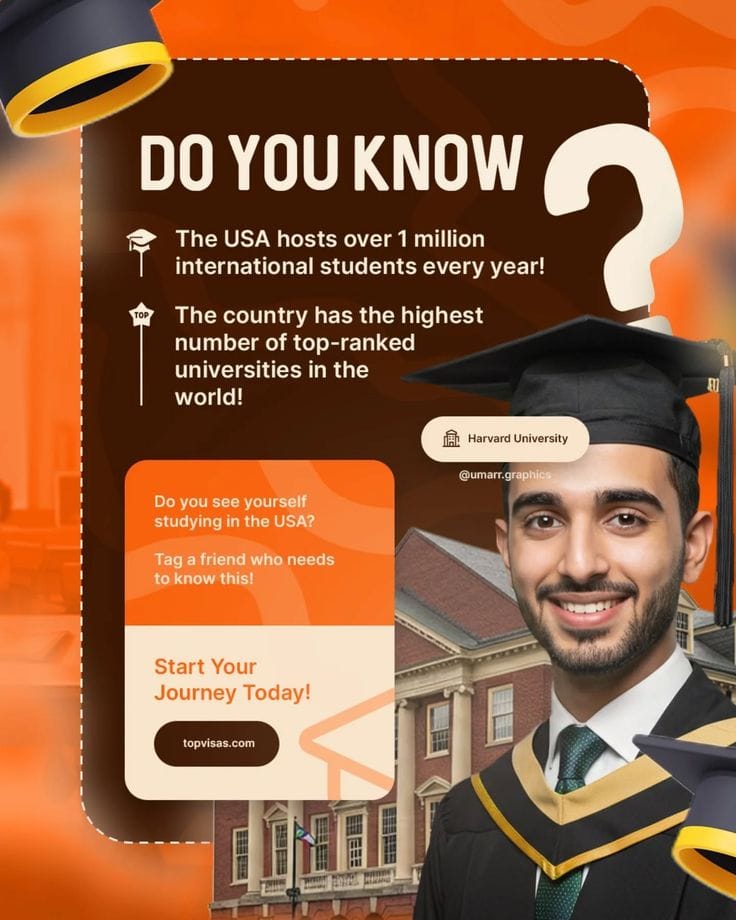
Canva example: a simple single image post with a headline, one visual and a logo
Single Image Post vs. Carousel vs. Video
Each format has its own job:
Single image
Best for one clear message, like an announcement, a quote, an offer or a quick tip.
Carousel
Best when you need to explain something step by step.
Video
Best for showing movement, personality or a process.
If your idea fits in one sentence, a single image is usually the right call. If it needs five steps, go with a carousel.
Why Single Image Posts Still Work
- They’re fast to make. You can design one in 15 to 20 minutes once you have a template.
- They’re easy to read. Nobody has to swipe, tap or turn the sound on.
- They work on every platform. The same idea can be resized for Instagram, Facebook, LinkedIn and Pinterest.
- They’re easy to repeat. Once you have a look, you can build a whole month of posts from it.
Types of Single Image Posts
Not every post needs to be original from scratch. Most of the good ones fall into a few familiar types. Here are the ones I’d start with, each with a Canva example.
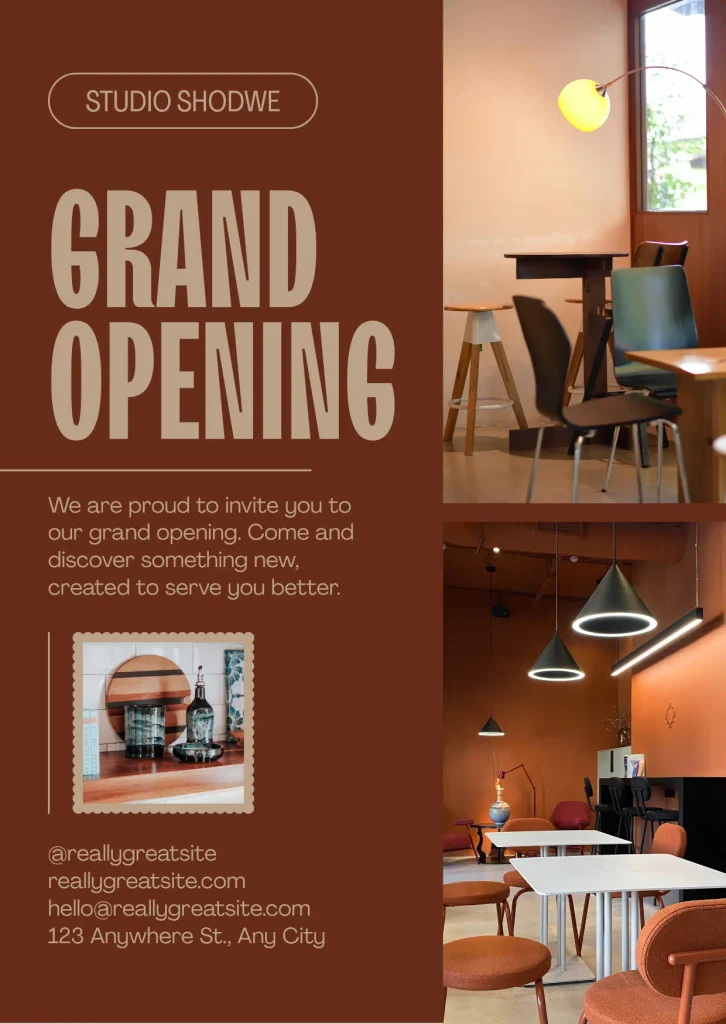
Announcement Posts
Use an announcement social media post for a new product, hire or location. Keep it to one headline and one supporting detail so the news is clear at a glance.
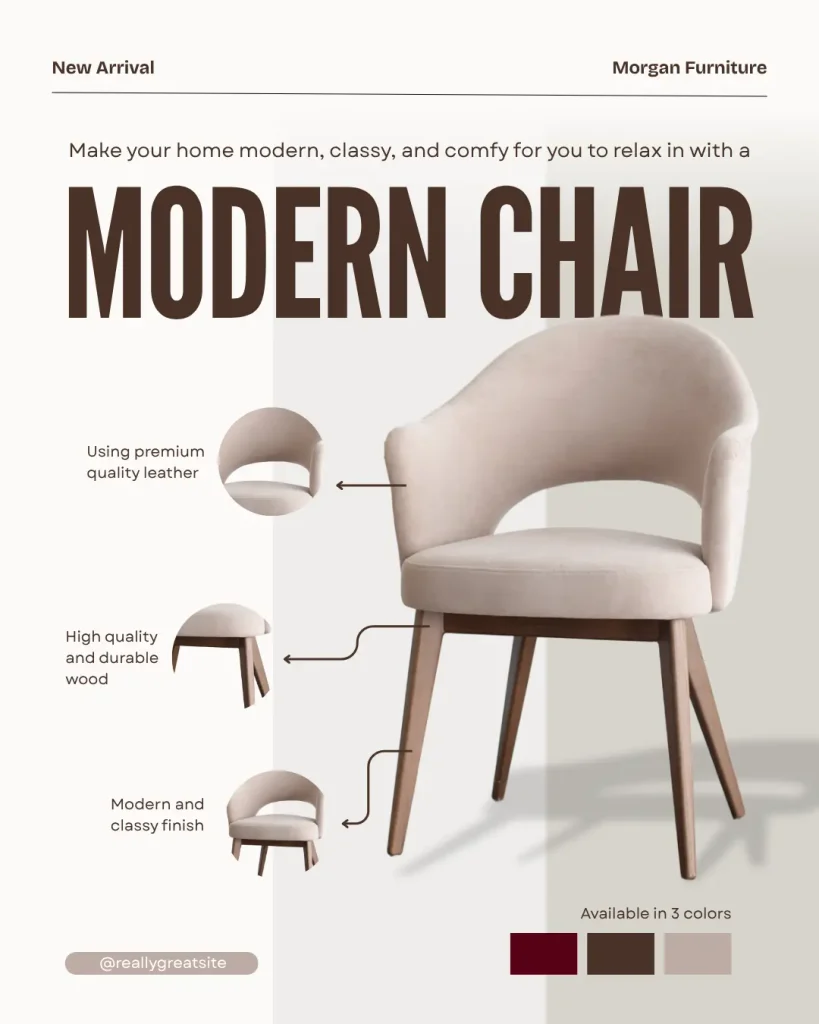
Product Posts
Show the product clearly and add one line about why it matters. Skip the long feature list. A clean photo on a solid background often beats a busy layout.
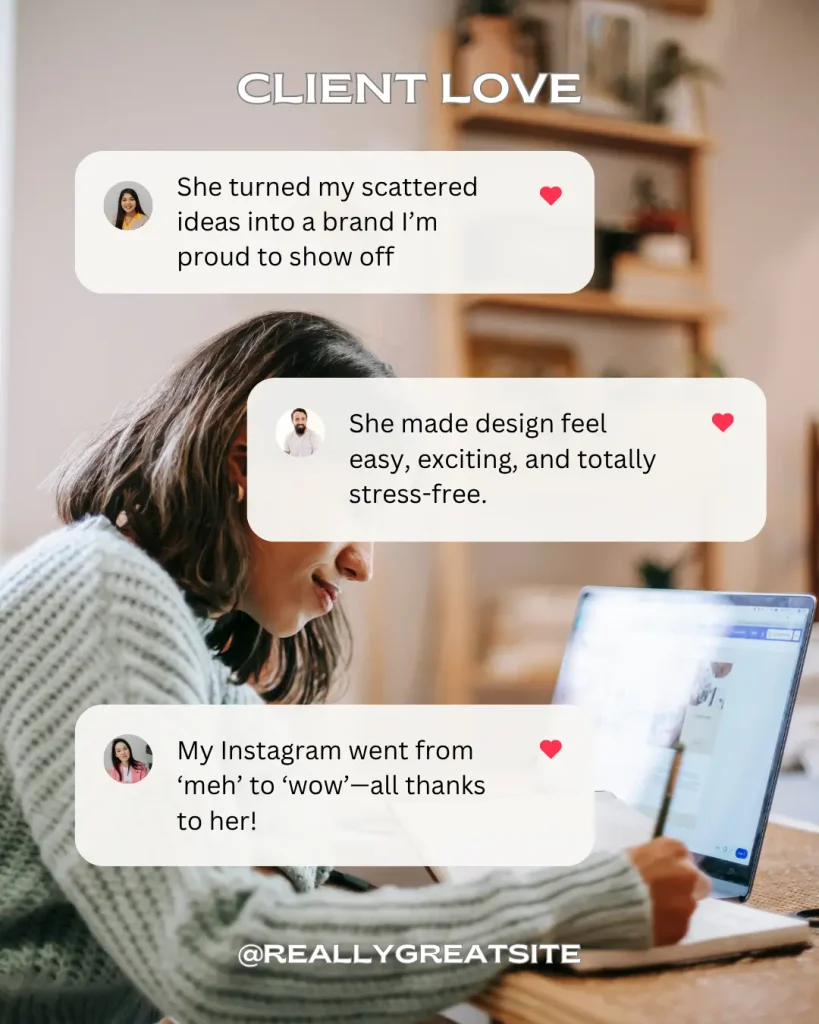
Testimonial and Review Posts
Share a real customer quote with their name and maybe a star rating. Testimonials build trust faster than most things you can say about yourself. Always ask permission first.
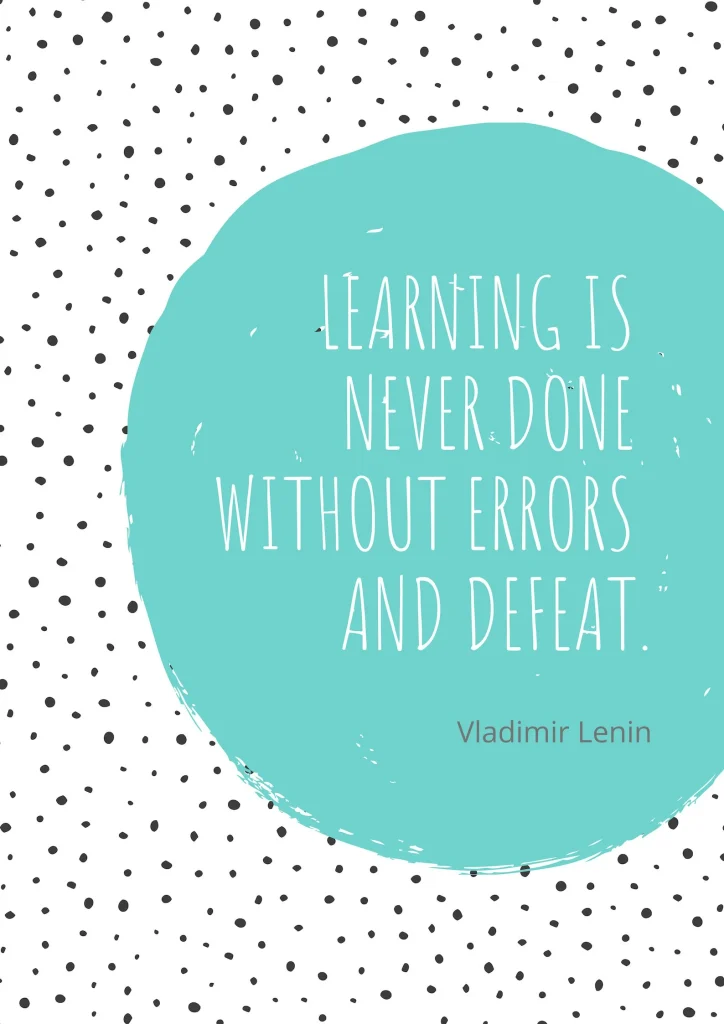
Quote and Inspirational Posts
These are the classic quote cards. They’re easy to make and easy to share, but they only work if the quote fits your audience. A generic quote with a sunset behind it won’t do much for you.
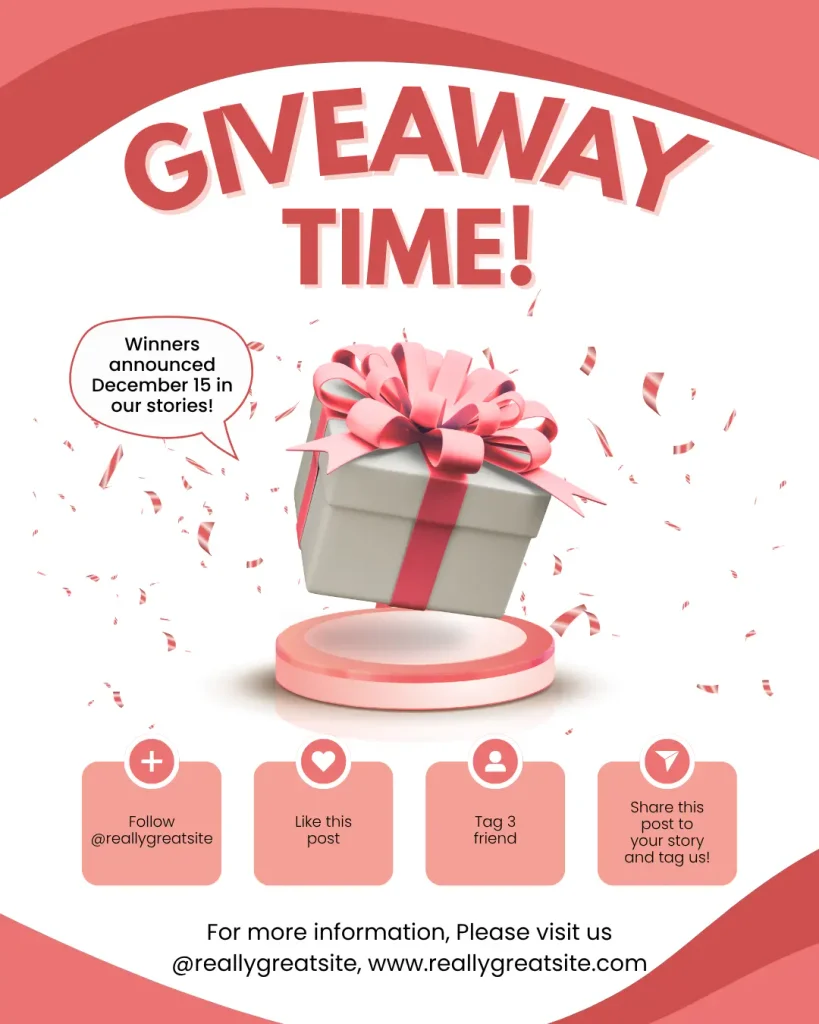
Giveaway and Promotion Posts
Spell out the prize, the rules and the deadline in the image. If people have to read the caption to figure out what’s going on, you’ve lost some of them already.
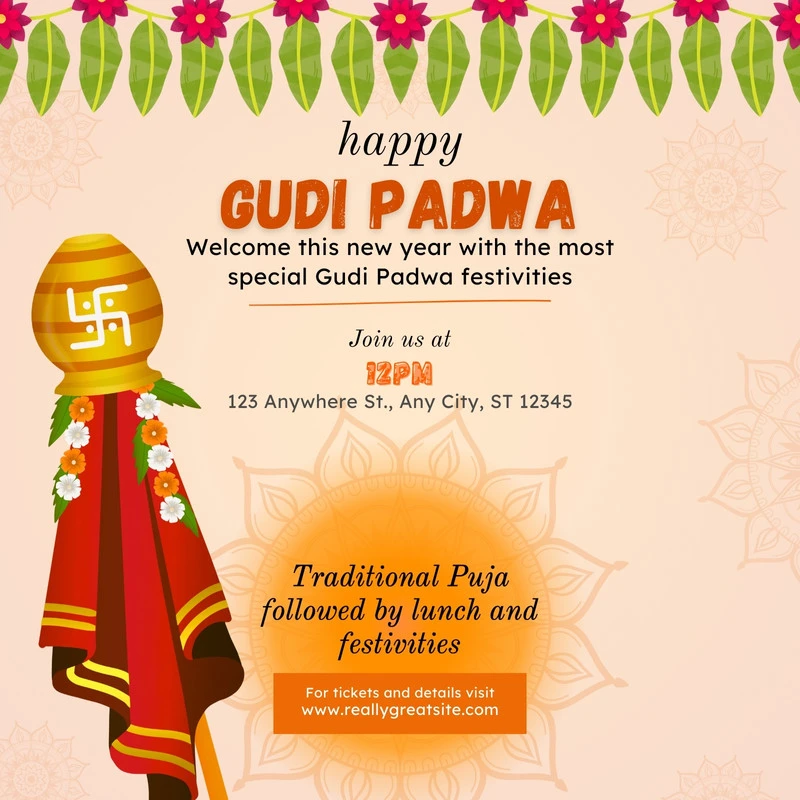
Festival and Event Posts
Festival posts, like Diwali, Republic Day or Rakshabandhan wishes, and event posts for webinars, launches or meetups are great for staying visible. Plan them ahead.
Educational and Informative Posts
One tip, one statistic, one myth busted. Educational posts get saved, and saves tell the platforms your content is worth showing to more people.
Single Image Post Dimensions for Each Platform
Wrong dimensions are one of the fastest ways to make a post look sloppy. Cropped headlines and squashed logos are almost always a size problem.
Here are the common sizes. Platforms change these from time to time, so double-check before you publish.
| Platform | Recommended size | Aspect ratio |
|---|---|---|
| Instagram (square) | 1080 × 1080 px | 1:1 |
| Instagram (portrait) | 1080 × 1350 px | 4:5 |
| Facebook (standard) | 1080 × 1080 px | 1:1 |
| Facebook (link post) | 1200 × 630 px | About 1.91:1 |
| LinkedIn (landscape) | 1200 × 627 px | About 1.91:1 |
| LinkedIn (square) | 1080 × 1080 px | 1:1 |
| X / Twitter | 1600 × 900 px | 16:9 |
| 1000 × 1500 px | 2:3 |
A quick note on Instagram: the profile grid has been shifting toward a taller crop, so a portrait post can look different on your grid than in the feed. Keep your key text and logo away from the edges so nothing gets cut off.
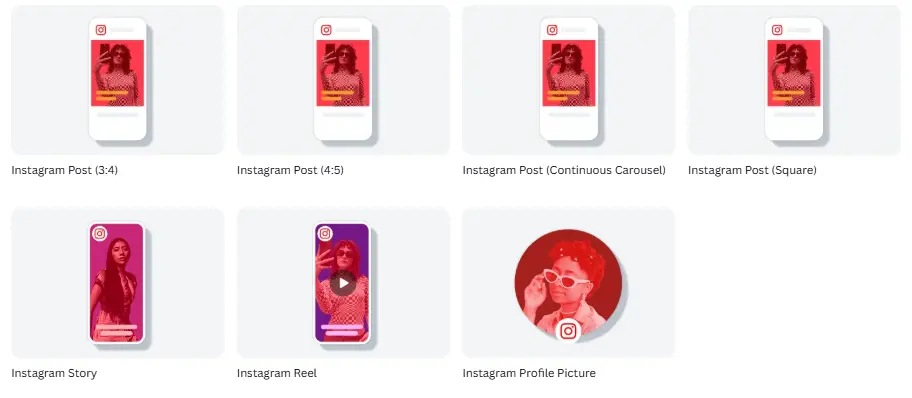
Canva screenshot: Various preset sizes for Instagram Post
The good news is that Canva has preset sizes for most of these, so you don’t have to memorize any numbers. Search “Instagram Post” or “LinkedIn Post” when you start a new design and it sets the canvas for you.
Safe Zones, Margins and Text Placement
A social media post layout needs breathing room. As a rule of thumb, keep important text at least 60 to 80 pixels away from every edge. Platforms crop, apps add overlays, and phones have rounded corners. Margins protect your message from all of it.
How to Design a Single Image Post, Step by Step
This is the process I’d follow in Canva. The same steps work in any design tool.
Step 1: Define the Goal and Audience
Before you open any tool, answer two questions. What do you want people to do after seeing this? And who exactly are you talking to? “Get more engagement” isn’t a goal. “Get people to save this tip” is.
Step 2: Choose the Right Format and Size
Pick your platform first, then pick the size from the table above. If you plan to post on more than one platform, design for 1080 × 1080 and adjust from there.
Step 3: Pick a Template or Start From Scratch in Canva
Go to Canva, choose your post size, and browse the templates. Searching for your post type, like “announcement” or “testimonial”, saves time.
Templates are a good starting point, but don’t use one exactly as it comes. Change the colors and fonts and rewrite the text, or your post will look like everyone else’s. Starting from a blank canvas is fine too, especially if you already have brand colors.
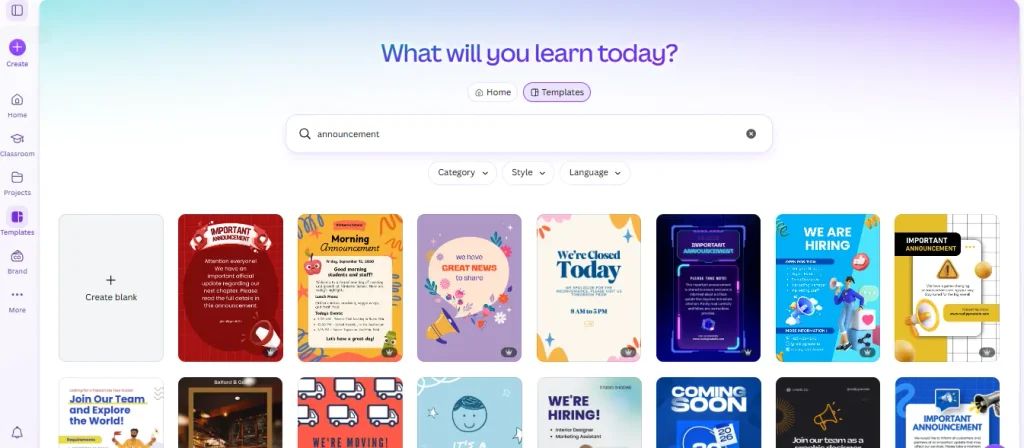
Canva screenshot: template search results
Step 4: Customize Layout, Fonts and Colors
Keep it simple:
- Fonts: two at most. One for headlines, one for supporting text.
- Colors: stick to your brand palette. Three or four colors is plenty.
- Contrast: dark text on a light background, or the reverse. If you squint and can’t read it, neither can your audience.
- Layout: one focal point. If everything is big, nothing stands out.
Using Canva for social media posts gets much easier once you set up a Brand Kit with your logo, colors and fonts. Then every new design starts on-brand.
Step 5: Add the Hook, Visual and CTA
Put your hook, meaning the first thing people read, in the largest text. Add one visual that supports it. Then add a small call to action, like “Save this for later” or “Read the full guide, link in bio.”
We’ll get into hooks properly in the next two sections.
Step 6: Export and Schedule
Download your design as a PNG for graphics with text, or JPG for photos. PNG usually keeps text sharper. Then post it or schedule it. Canva has its own social media scheduler, and you can also use it to post to social media directly from your design, or download the file and use whatever scheduler you prefer.
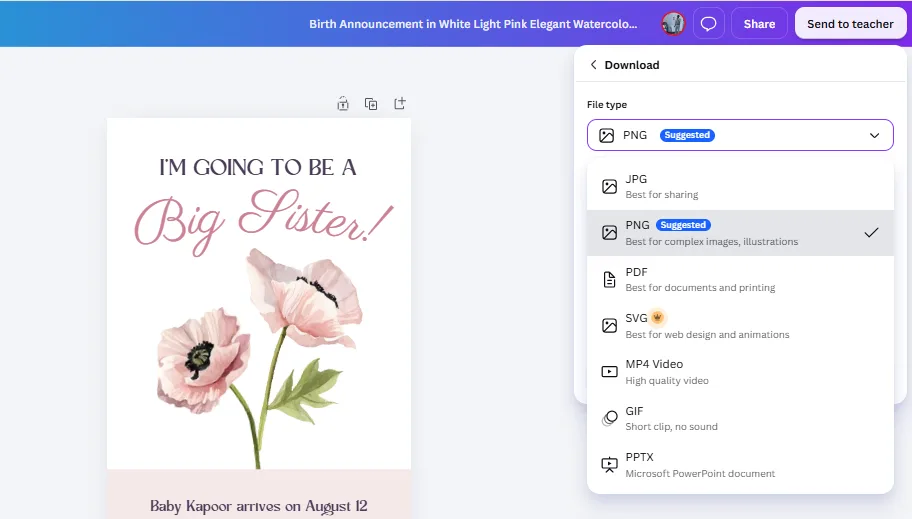
Canva screenshot: export and schedule options
Best Free Tools to Design a Single Image Post
You don’t need to pay for software to make good posts. These are the free tools I’d look at first. Free plans change often, so check each tool’s current limits before you commit.
Canva
Best for beginners, with tons of templates, drag-and-drop editing, and preset sizes. The free version is enough for most starters.
Adobe Express
Adobe’s browser-based design tool. It has a free tier with templates and basic editing, and it’s a good option if you already use other Adobe products.
Microsoft Designer
A free tool with AI features that can generate designs from a text description. It works with a Microsoft account. It’s handy when you need ideas quickly

Figma
Best for custom layouts and design systems. It has a steeper learning curve than Canva, but it gives you far more control. A good pick if you want to build reusable templates for a team.
Photopea
A free, browser-based editor that looks and feels a lot like Photoshop. It’s supported by ads, and it’s useful if you need layers and detailed image editing without paying for Photoshop.

Freepik
Not a design editor in the same way, but a great source of free graphics, illustrations and templates. Check the license and attribution rules on anything you download.
Quick Comparison
| Tool | Best for | Ease of use | Templates |
|---|---|---|---|
| Canva | Beginners, quick posts | Very easy | Very large library |
| Adobe Express | Adobe users | Easy | Good selection |
| Microsoft Designer | AI-generated ideas | Easy | Moderate |
| Figma | Custom layouts, teams | Moderate | Community templates |
| Photopea | Detailed photo editing | Moderate | Limited |
| VistaCreate / Pixlr | Extra template variety | Easy | Good selection |
| Freepik | Graphics and assets | Easy | Large asset library |
How to Find a Hook for Your Single Image Post
A hook is the first thing someone sees or reads. On a single image post, it’s the headline on the image. If it doesn’t grab attention, the rest of your design won’t matter.
Start With Your Audience’s Problems and Questions
The best hooks come from real questions. What do your customers ask you again and again? What do they complain about? Write those down. Each one is a hook waiting to happen.
Mine Comments, Competitors and Trending Topics
Read the comments on your own posts and on posts from others in your niche. People tell you exactly what they’re confused or excited about. You can also look at what your competitors are posting, not to copy them, but to spot gaps.
Hook Sources That Rarely Fail
- A surprising statistic
- A common myth, busted
- A mistake people make
- A result you achieved
If you keep a running note on your phone for ideas, you’ll never stare at a blank screen again.
How to Create a Hook That Stops the Scroll
Finding the idea is half of it. Now you have to write it so it works in a glance.
Hook Formulas With Examples
- Question: “Is your Instagram post too wordy?”
- Bold claim: “Most social media posts fail in two seconds.”
- Number: “5 fonts that always look good.”
- How-to: “How to design a post in 10 minutes.”
- Contrast: “Before: cluttered. After: clear.”
Try a few versions of the same hook and pick the shortest one that still makes sense. Fewer words almost always win.
Pair the Hook With the Visual
The image and the text should work together, not compete. If your headline says “Stop making this mistake,” your visual should hint at the mistake. A mismatch confuses people and they move on.
Typography and Contrast Tips
- Make the hook large enough to read on a phone without zooming.
- Use bold weights for headlines and lighter ones for details.
- Keep it to 6 to 10 words if you can.
- Place text over a plain area of the image, or add a solid shape behind it.
Common Hook Mistakes
- Vague headlines like “Big news!” with no news
- Too many words on the image
- Clickbait that the post doesn’t deliver on
- Low-contrast text on a busy photo
Current Trends in Single Image Social Media Posts
Trends come and go, so treat this section as a snapshot rather than a rulebook.
Bold, Minimal Typography
Big headlines, lots of white space and very few elements. Simple layouts are easier to read on small screens, and they load the eye straight onto the message.
AI-Assisted Design
More people are using AI to generate images, backgrounds and even layouts. Canva, Microsoft Designer and others have built-in tools for this. They’re useful for speeding up ideas, but they work best when you edit the results and add your own voice. Untouched AI images can look generic.
Authentic, Less-Polished Visuals
Real photos of real people often beat glossy stock images. Behind-the-scenes shots, simple phone photos and imperfect layouts can feel more trustworthy.
Consistent Branding
Audiences recognize you by your colors, fonts and layout style. A repeatable look across posts builds familiarity. This is where a Brand Kit earns its keep.
Accessibility
Add alt text to your images, use strong color contrast and keep your text readable. It helps people with visual impairments, and it improves the experience for everyone else too.
More Things That Make a Difference
Text-on-Image Guidance
There’s no magic word count, but less is more. If your image looks like a paragraph, move most of it to the caption. Aim for a headline and one or two supporting lines.
Brand Consistency
Set up a Brand Kit in Canva with your logo, two or three brand colors and your fonts. Place your logo in the same corner on every post. Small habits like this add up.
Copyright and Image Licensing
Not everything you find online is free to use. Check the license on stock photos, and remember that some Canva elements are only free on paid plans. If you use AI-generated images, read the tool’s usage terms, especially for commercial use.
How to Measure Performance
Once your post is live, look at:
- Saves and shares: signs that people found it valuable
- Reach: how many people saw it
- Click-through rate: if your post includes a link
- Comments: especially the questions, which give you your next hook
Compare your posts over a few weeks rather than judging one post on its own.
Common Mistakes to Avoid
- Using the wrong dimensions
- Cramming in too much text
- Choosing low-contrast colors
- Mixing five different fonts
- Skipping the call to action
- Ignoring mobile, where most people will see your post
Best Practices Checklist
- One clear message per post
- Correct size for the platform
- A short, strong hook in the biggest text
- Two fonts and a small color palette
- Safe margins around text and logos
- A clear call to action
- Alt text added
- Caption that adds to the image instead of repeating it
Frequently Asked Questions
What is the best size for a single image post?
For most platforms, 1080 × 1080 pixels works well. On Instagram, 1080 × 1350 gives you more screen space. Use 1200 × 627 for LinkedIn landscape posts.
What is a single image post on Instagram?
It’s a post with one photo or graphic instead of multiple slides or a video. It appears in the feed and on your profile grid.
Can I design social media posts for free in Canva?
Yes. Canva’s free plan includes a large set of templates, fonts and graphics. Some premium elements require a paid plan, but you can make polished posts without one.
How much text should be on a social media image?
Keep it short. A headline of about 6 to 10 words plus a line or two of support is usually enough. Put the rest in the caption.
What is the difference between a single image post and a carousel?
A single image post has one visual. A carousel has several slides that people swipe through. Use a single image for one idea and a carousel when you need to walk through steps.
Which is the best free tool to design social media posts?
Canva is the easiest place to start. If you want more control, look at Figma. If you want AI help, try Microsoft Designer.
Final Thoughts
Good social media post design comes down to a few habits: one message, a strong hook, readable text and a consistent look. You don’t need expensive software or a design degree. You need a clear idea, a simple layout and a bit of practice.
Pick one post type from this guide, open Canva, and make one today. It doesn’t have to be perfect. It just has to be posted.
Contact me for design help