The Three Key Components of Google Tag Manager
To really understand how GTM works, you need to know about its three building blocks: Tags, Triggers, and Variables.
1. Tags — The Trackers
Tags are the actual snippets of code that collect data and send it to your marketing platforms. Think of them as little observers quietly watching what users do on your site.
Some popular tags you’ll come across include:
- Google Analytics 4 (GA4) event tags
- Google Ads conversion tracking
- Meta Pixel
- LinkedIn Insight Tag
- Hotjar, Crazy Egg, Mixpanel, and many more
2. Triggers — The Rules
A tag doesn’t fire on its own. It needs a trigger — basically a rule that tells the tag when to activate.
For example, you might want your Google Analytics tag to fire every time someone views a page. But your conversion tag? That should only fire when someone completes a purchase. Triggers make that level of control possible.
Common triggers include:
- Page views
- Button or link clicks
- Form submissions
- Scroll depth milestones
- Time spent on a page
- Custom events you define
3. Variables — The Details
Variables add extra context to your tags and triggers. They store specific bits of information GTM might need, like your Google Analytics Measurement ID, a specific page URL, or the class name of a button that was clicked.
Instead of re-entering your tracking ID every time you build a new tag, you just create a variable once and reference it everywhere. It’s a big time-saver.
How Does Google Tag Manager Actually Work?
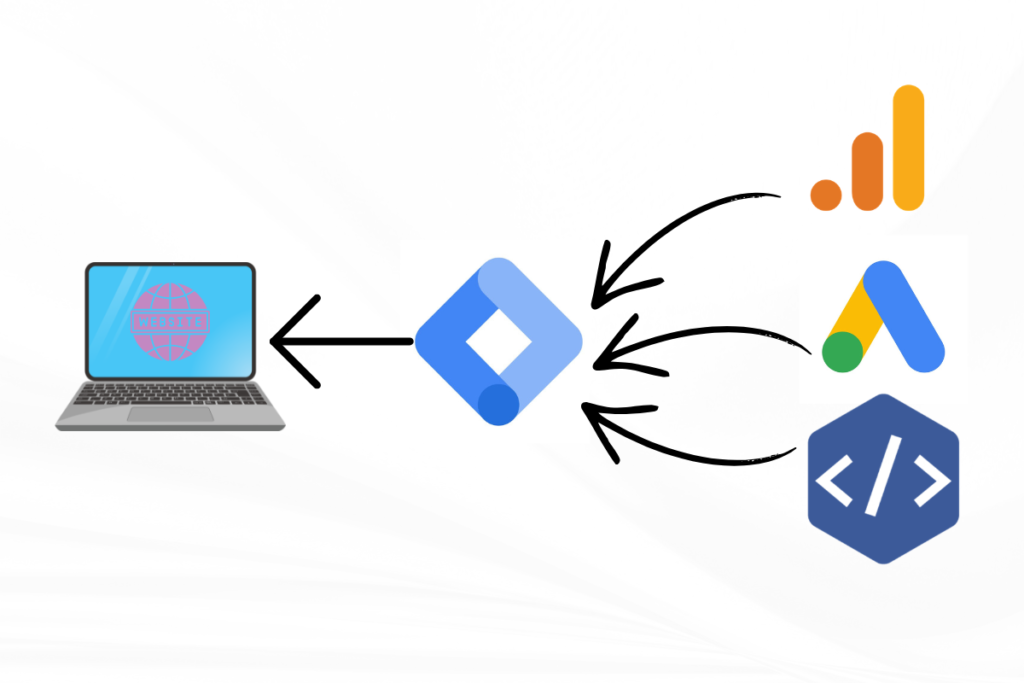
The process is actually quite simple. All you need to do is install GTM’s one-time code (referred to as a “container snippet”) on your site. That’s all you have to do!
When a visitor accesses your page, GTM will continue to run in the background and monitor visitor activity behind the scenes. Every time a visitor performs an action (i.e., clicks on a button), GTM will check to see if that action is defined by one of your triggers. If it is, then GTM will execute the tag associated with that trigger, which will send information to the appropriate platform (e.g., Google Analytics or Facebook Pixel).
Once you install GTM’s container snippet, there is no additional code that will need to be added or edited on your site. GTM will automatically execute the code to insert, update, or remove the tags that are associated with the actions you set up in GTM based on visitor activity. By doing so, GTM helps keep your website as small and efficient as possible and helps to minimize the chance of tracking scripts breaking.
Why Should You Use Google Tag Manager?
You might be wondering — why not just add tracking codes directly to the site? Here’s why GTM is the smarter choice:
Speed and independence: Marketers can add or update tags without waiting days for a developer to make the change.
Fewer errors: All your tracking codes live in one organized place, making it much harder to accidentally break something.
Preview and test before going live: GTM’s Preview Mode lets you check that everything works correctly before publishing changes to your live site.
Version control: Every time you publish changes, GTM saves a new version. If something breaks, you can roll back instantly.
Team collaboration: Multiple team members can work in separate workspaces without overwriting each other’s progress.
Security and permissions: You control who can view, edit, or publish tags — so changes only go live when authorized.
Google Analytics vs Google Tag Manager — What's the Difference?
This is an often-encountered inquiry. The basic response is that the two products are very different but work together very closely regarding how they interact with your web analytics tracking codes when installing them. Google Tag Manager handles how tracking codes are installed and the creation of those codes. Google Analytics is the destination where all the data collected via your tracking codes will be stored. In short, you can use GTM to create, configure and deploy your GA tags, with GTM ensuring the data from those tags is sent to Google Analytics for analysis.
Getting Started: How to Use Google Tag Manager
Using Google Tag Manager for the first time is more straightforward than it sounds:
- Create a free GTM account at tagmanager.google.com
- Set up a container (one per website)
- Add the container snippet to your website’s <head> and <body> tags — just once
- Start adding tags, triggers, and variables through the GTM dashboard
- Use Preview Mode to test everything before publishing
Final Thoughts
No longer does the task of managing tracking codes have to be done strictly by developers and that can be done by a marketing team using Google Tag Manager. Instead of writing out the tracking code manually every time a tool needs to be added to the website/existing code, GTM allows the marketing team to use one place to manage the tracking code, which is much quicker and much safer than editing the actual code to your website.
You can also use GTM to set up tracking for simple form submissions as well as complete funnel analytics with Google Analytics, Google Ads and Meta Pixel. GTM provides opportunity to manage all of the tools that you require with the current marketplace in one easy to navigate layout.
If you haven’t set it up already, this would be a great time to get started!